
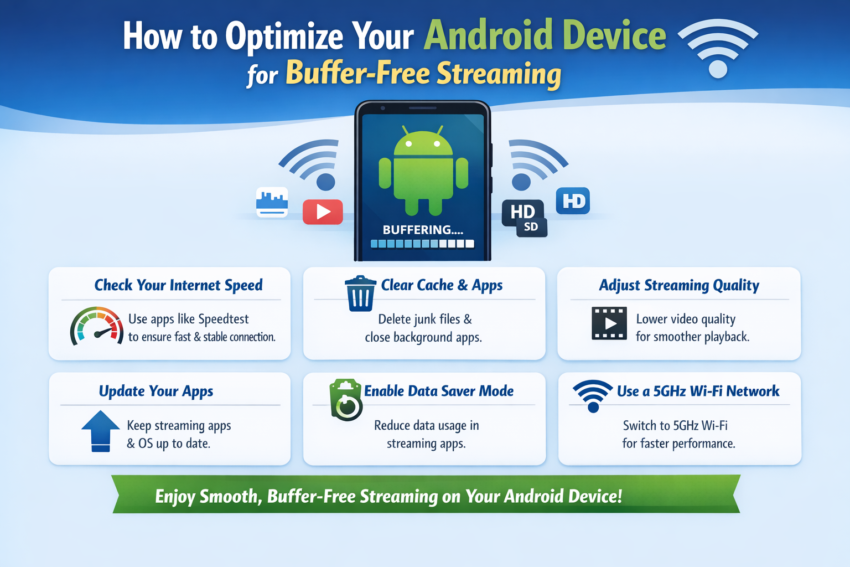
You press play. The video starts. Three seconds in — the spinning circle appears. You wait. It buffers again. You throw your phone on the couch in frustration.
Sound familiar? You are not alone. Buffering is one of the most universally annoying experiences in modern life. And the worst part? Most of the time, it is completely fixable.
Whether you are streaming Netflix, YouTube, Prime Video, or any other platform on your Android device, this guide walks you through every practical step to eliminate buffering for good. No technical degree required. Just clear, actionable steps that actually work.
Let’s fix your stream.
Why Your Android Keeps Buffering — The Real Reasons
Before fixing anything, you need to understand what is actually causing the problem. Buffering does not just happen randomly. There is always a reason — usually more than one.
The most common causes are slow or unstable internet, not enough free RAM on your device, a full or nearly full storage drive, outdated apps or operating system, poor router placement, and background apps consuming bandwidth and processing power simultaneously.
Identifying which combination of issues you are dealing with makes the fix much faster and more effective.
Network Issues vs. Device Issues
There are two broad categories here. Network issues are about your internet connection — speed, stability, and signal strength. Device issues are about the hardware and software on your Android — memory, storage, and processing power.
Many people assume buffering is always a network problem. It is not. A fast internet connection running through a RAM-starved device with seventeen apps open in the background will still buffer constantly. You need to address both sides.
How Streaming Apps Consume Your Resources
Streaming apps are among the most resource-hungry applications on your phone. They consume RAM to buffer ahead of what you are watching. They use CPU power to decode the video in real time. They pull data continuously from the internet. And they keep the screen on at full brightness the entire time.
When other apps are competing for those same resources, streaming loses. The result is buffering, lag, and poor video quality.
Start With Your Internet Connection
Your internet connection is the foundation of everything. A beautiful, well-optimized Android device cannot stream smoothly on a weak connection. Start here before doing anything else.
Wi-Fi vs. Mobile Data: Which Is Better for Streaming?
Wi-Fi is almost always the better choice for streaming. A stable home Wi-Fi connection provides consistent speeds, low latency, and unlimited data — exactly what streaming needs.
Mobile data can work well for streaming, especially on 4G LTE or 5G networks. But mobile data is subject to signal fluctuations, network congestion during peak hours, and data caps that throttle your speed once you hit a limit. For long streaming sessions, always prefer Wi-Fi when available.
How to Test Your Streaming Speed the Right Way
Do not just run a speed test and call it done. Run the test in the same room, on the same device, at the same time of day that you usually stream. This gives you an accurate picture of your real-world streaming conditions.
For smooth 1080p streaming, you need a minimum of 5 Mbps. For 4K streaming, you need at least 25 Mbps. If your results fall below these numbers, the connection is your primary problem and needs to be addressed before anything else.
Free Up RAM Before You Hit Play
RAM is your device’s short-term memory. When it is full, everything slows down — including your streaming apps. Freeing up RAM before you start watching makes a measurable difference.
Which Apps Are Silently Killing Your Stream
Social media apps are the biggest culprits. Facebook, Instagram, TikTok, and Twitter all run background processes that consume RAM and bandwidth even when you are not using them. Music apps, navigation apps, and news aggregators do the same.
Go to your Settings, find Running Apps or Memory Usage, and look at what is consuming the most RAM in the background. You will often find five to ten apps quietly eating resources you need for streaming.
The Right Way to Clear Background Processes
Do not just swipe away apps from the recent apps menu. That does not always fully clear their background processes. Instead, go to Settings, then Apps, select the app, and tap Force Stop. Do this for every non-essential app before you start streaming.
Pro Tip on RAM Management
Avoid using RAM cleaner apps from the Play Store. Most of them are ineffective, ad-laden, and ironically consume more resources than they free up. Android’s built-in memory management is better than any third-party cleaner available.
Storage Space and Streaming: The Hidden Connection
Here is something most people do not realize. Streaming apps use your device’s storage as a temporary cache — a place to store video data slightly ahead of where you are watching. If your storage is nearly full, the app cannot cache properly, and buffering increases.
As a general rule, keep at least 2GB to 3GB of free storage on your device at all times if you stream regularly. Clear your streaming app’s cache regularly — monthly is a good habit. Delete apps you do not use, move photos to cloud storage, and avoid letting your device’s storage fill up past 85 percent capacity.
A simple storage cleanup can make a surprising difference to your streaming experience.
Adjust Your Android’s Developer Options for Smoother Playback
Developer Options is a hidden menu in Android that gives you access to advanced performance settings. Most users never touch it. That is a mistake.
To enable it, go to Settings, then About Phone, and tap Build Number seven times. You will see a message that says Developer Options have been enabled. Find the menu in your Settings and open it.
Animation Scale Settings That Make a Real Difference
Inside Developer Options, you will find three animation scale settings: Window Animation Scale, Transition Animation Scale, and Animator Duration Scale. All three are set to 1x by default.
Change all three to 0.5x. This makes your phone feel faster and more responsive because animations complete twice as quickly. It does not speed up your internet, but it removes the sluggishness that makes buffering feel even worse than it is.
Background Process Limits Explained
Also inside Developer Options, find the Background Process Limit setting. By default it is set to Standard Limit. You can change this to a maximum of two or three background processes. This forces Android to aggressively limit background apps, freeing up RAM specifically for the foreground app — your streaming service.
Be aware that this setting may cause some background apps to reload when you switch back to them. That is a minor inconvenience compared to buffer-free streaming.
Optimize Your Streaming App Settings
Every major streaming app has settings that directly control how it uses your data and device resources. Most people leave these on default. That is leaving performance on the table.
Video Quality Settings You Should Actually Use
Higher video quality requires more data and more processing power. If you are on a slower connection or an older device, streaming at 4K or even 1080p may be causing your buffering.
Try dropping the quality to 720p. On a phone screen, the difference between 720p and 1080p is nearly invisible. But the data requirement drops significantly, and buffering often disappears entirely. Match your quality setting to your actual connection speed — not to what you wish your connection speed was.
Cache Settings That Prevent Mid-Stream Buffering
Some streaming apps allow you to adjust how much content is pre-buffered before playback begins. A larger pre-buffer means the app loads more video ahead of time, reducing the chance of hitting a buffer pause mid-stream.
Look for Data Usage or Playback settings inside each app. Where options exist, set the pre-buffer or cache size to the highest available option on Wi-Fi connections.
The Netflix APK — What You Need to Know Before Using It
Netflix on Android deserves its own dedicated section because it is the world’s most popular streaming service and it comes with a unique APK situation that confuses a lot of users.
Official Netflix APK vs. Third-Party Modified Versions
The official Netflix APK is the legitimate application package distributed by Netflix Inc. You can download it directly from the Google Play Store or from Netflix’s official website if your device is not compatible with the Play Store. This is the version you should always use.
Third-party modified Netflix APK — sometimes called Netflix Mod, Netflix Premium APK, or Netflix Cracked — are unofficial versions that claim to offer premium features for free. These are not endorsed, distributed, or secured by Netflix in any way.
How to Safely Install the Netflix APK on Android
If your Android device does not support the Play Store — such as certain Amazon Fire tablets or older Android versions — you can install the official Netflix APK safely by following these steps.
Go to netflix.com on your device’s browser and navigate to their official APK download page. Before installing, go to Settings, then Security, and enable Install from Unknown Sources only for your browser app — not as a global setting. Download the APK, install it, then immediately disable the Unknown Sources permission again. This keeps the installation clean and minimizes security exposure.
Settings Inside Netflix APK to Boost Streaming Performance
Once inside Netflix, tap your profile icon and go to App Settings. Find Video Quality and set it to match your connection — Auto is fine for variable connections, but manually selecting a quality tier gives you more control. Find the Download Quality section if you plan to download content and set it to Standard rather than High to preserve storage. Also find the Data Usage Per Screen setting and configure it based on whether you are on Wi-Fi or mobile data.
For the best buffer-free experience on Wi-Fi, set video quality to High and make sure background app refresh is disabled for all non-essential apps while Netflix is running.
The Risks of Using Unofficial Netflix APK Versions
This is where things get serious. Unofficial, modified Netflix APKs are distributed through third-party websites with no quality control, no security auditing, and no accountability.
These files regularly contain malware, spyware, and adware. They may appear to work normally while secretly harvesting your login credentials, payment information, and personal data in the background. Netflix accounts compromised through fake APKs are a well-documented and common form of credential theft.
Beyond security risks, using unofficial Netflix APKs violates Netflix’s Terms of Service and can result in permanent account suspension. You could lose your entire subscription history, your watchlist, and your account — and Netflix does not offer reinstatement for ToS violations.
The financial risk is real. Never use a third-party Netflix APK. The official version is free to download and the only safe option.
Router Settings That Directly Affect Your Stream
Your router is just as important as your device. A poorly configured router will cause buffering even on a fast internet plan.
2.4GHz vs. 5GHz — Choosing the Right Band
Most modern routers broadcast on two frequency bands. The 2.4GHz band has longer range but lower speeds. The 5GHz band has shorter range but significantly faster speeds and less interference.
For streaming, always connect to the 5GHz band when you are within reasonable distance of your router. If your device automatically connects to 2.4GHz, manually select the 5GHz network in your Wi-Fi settings. The speed difference for streaming is substantial.
Use a VPN the Smart Way for Streaming
VPNs can help with streaming in specific situations — particularly if your ISP throttles streaming traffic, which many providers do during peak hours. A good VPN masks your traffic type, preventing speed throttling targeted at streaming services.
However, a low-quality or overloaded VPN server will make buffering worse by adding latency and reducing your effective speed. If you use a VPN for streaming, choose a premium provider with servers optimized for video, connect to a server geographically close to you, and always test streaming speed with and without the VPN to confirm it is actually helping.
Keep Your Android Updated for Peak Performance
System updates are not just about new features and security patches. They often include performance improvements that directly affect how efficiently your device handles streaming workloads.
Keep your Android OS updated. Keep your streaming apps updated through the Play Store. Outdated app versions frequently contain bugs that cause playback issues, buffering, and crashes. An update released last month may have already fixed the exact buffering problem you are experiencing right now.
Battery Optimization and Streaming: Stop Killing Your Own Stream
Android’s battery optimization features are designed to save power by limiting what apps can do in the background. This is great for battery life. It is terrible for streaming.
Go to Settings, then Battery, then Battery Optimization. Find your streaming apps — Netflix, YouTube, Prime Video — and set them to Not Optimized. This tells Android not to throttle or restrict these apps while they are running. The improvement in playback consistency can be dramatic, especially on mid-range and budget Android devices.
When to Consider a Factory Reset
If you have tried every optimization on this list and buffering persists, your device may be suffering from deeper software issues — corrupted cache files, fragmented system processes, or accumulated software bloat from years of use.
A factory reset returns your device to its out-of-box state. It is a drastic step, but it works. Backup your data to Google Drive or your PC first, perform the reset, and reinstall only the apps you actually use. Many users report dramatic improvements in streaming performance after a clean reset on devices they thought were simply too old.
The Best Streaming Apps for Low-End Android Devices
Not every Android device is a flagship. If you are on a budget device with limited RAM and processing power, choosing the right streaming app matters.
YouTube is the lightest major streaming app and performs well even on low-end hardware. Netflix’s official app is well-optimized and scales down gracefully. Plex is excellent for local media streaming with minimal resource use. Amazon Prime Video performs reasonably well on mid-range devices. Avoid running multiple streaming apps installed simultaneously if storage and RAM are limited — install only what you actively use.
Conclusion
Buffering is not something you have to accept. It is a problem with specific causes and specific solutions. By addressing your internet connection, freeing up RAM, managing storage, adjusting developer settings, configuring your streaming apps correctly, and understanding exactly how tools like the Netflix APK work — both officially and unofficially — you can transform your Android streaming experience completely.
The steps in this guide are not complicated. They do not require expensive upgrades. They require about thirty minutes of attention and the willingness to dig a little deeper into your device’s settings. Do that, and your spinning circle days are over.
FAQs
1. How much RAM do I need on Android for smooth streaming?
For comfortable 1080p streaming, 3GB of RAM is the practical minimum. 4GB or more gives you enough headroom to stream without closing every other app first. If your device has 2GB or less, aggressive background app management is essential.
2. Is it safe to download the Netflix APK from outside the Play Store? Only if you download it from Netflix’s official website. Any Netflix APK from a third-party site carries serious malware and credential theft risks. Always use the Play Store or Netflix’s own official source.
3. Why does my Android buffer on fast Wi-Fi?
Fast Wi-Fi eliminates network speed as the cause, which means the problem is on the device side. Check RAM usage, clear app caches, disable battery optimization for your streaming app, and review Developer Options settings.
4. Does clearing the cache on Netflix improve streaming?
Yes, regularly clearing Netflix’s cache removes corrupted temporary files that can cause playback stuttering and buffering. Do it monthly via Settings, then Apps, then Netflix, then Storage, then Clear Cache.
5. Can an old Android phone stream 4K video?
Most older Android devices lack the hardware decoding capability for 4K streaming, even with a fast connection. If your device is more than four years old, stick to 1080p or 720p — you will get a smoother experience and significantly less buffering.