
The honest version of this conversation starts with an admission: most people using Premiere Pro, DaVinci Resolve, or Final Cut Pro for everyday content creation are using roughly four percent of what those tools can do.
They are opening a professional film editing suite to trim a clip, merge two recordings, or extract audio from a video. It is the equivalent of using an industrial kitchen to make toast. The software is not wrong for existing — it is wrong for the job. And in the last few years, a category of browser-based video editors has quietly gotten good enough to handle everything a typical content creator, educator, or small business owner actually needs, without installation, without a learning curve, and without a monthly subscription.
This is a look at how browser-based editors compare to desktop software, what the category can and cannot do, and which tools are worth paying attention to right now.
What changed to make browser-based editing viable
Three or four years ago, browser-based video editing was genuinely bad. Slow processing, poor format support, watermarks on every export, and a hard ceiling of maybe one or two minutes of footage before the tab crashed. The tools existed but they were toys compared to desktop software.
What changed is the underlying browser technology. WebAssembly arrived and made it possible to run near-native-speed code inside a browser tab. The MediaRecorder API matured and stabilized across Chrome, Firefox, and Safari. Web Audio API became reliable enough for real audio mixing. Hardware acceleration reached a point where browsers could use a device’s GPU for video processing rather than relying entirely on the CPU.
The result is that browser-based editors in 2026 are doing things that would have been impossible in a browser tab in 2021. Real-time frame rendering, audio track mixing, format conversion, frame extraction — all running locally on the user’s device without touching a server.
Desktop software: what it still does better
This is not an argument that desktop software is obsolete. There are clear situations where it remains the right tool.
Multi-track timeline editing is still the domain of desktop software. If you are cutting a documentary with 14 audio tracks, color-grading 4K footage with LUTs, or building a motion graphics sequence with layered effects, you need Premiere Pro, DaVinci Resolve, or Final Cut. Browser-based tools do not replicate a full non-linear editing timeline and they are not trying to.
Batch processing at scale — exporting 200 clips with consistent settings — is still faster and more reliable on desktop. A browser tab has memory limits that a desktop application does not.
Plugin ecosystems matter for professional work. Decades of third-party plugins for noise reduction, color matching, motion tracking, and audio mastering exist for desktop software and have no equivalent in browser tools yet.
If your work sits in any of those three categories, desktop software is the correct answer and browser tools are the wrong comparison.
Browser-based editors: what they actually handle well
For everything outside professional post-production, the picture is different.
Trimming. Cutting the beginning, end, or middle section of a clip is genuinely fast and clean in a browser-based tool. No project file to create, no timeline to set up, no rendering queue to manage. Upload, drag handles, download. For the volume of trimming most content creators do — shortening clips for social media, cutting dead air from recordings, removing a stumbled introduction — a browser tool is measurably faster than opening desktop software.
Merging clips. Joining multiple recordings into one file is a task desktop software handles with unnecessary ceremony. You need a project, a sequence, a timeline, an export queue, and a codec decision. A browser merger does the same job in a fraction of the setup time for anyone who just needs clips joined end to end.
Format-specific exports. Converting horizontal footage to vertical 9:16 for Shorts and Reels, extracting a clean audio track from a video file, pulling a still frame for a thumbnail — these are discrete, single-purpose tasks that browser tools handle without the overhead of a full desktop environment.
Privacy-sensitive work. Because processing runs locally in the browser, files never leave the device. For anyone trimming client footage, personal recordings, or confidential screen captures, that distinction matters more than processing speed.
The tools worth knowing in this category
The browser-based editing space has a wide range of quality. Some tools are genuinely useful. Many are ad-heavy, watermark everything, and exist primarily to upsell a paid plan. A few are doing something worth paying attention to.
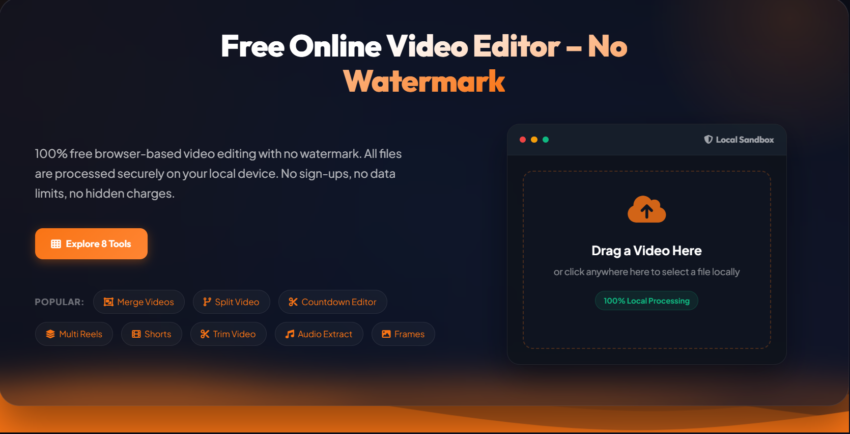
ClikDeo is one of the more complete free options in this space. It covers the core editing operations most creators actually need — trimming with both Keep Inward and Keep Outward modes, merging multiple clips with audio control, converting footage to vertical format for social media, splitting long videos into segments, extracting audio tracks, pulling still frames, and building multi-reel layouts. Everything processes locally without server uploads, and there is no watermark on exports. It is listed in the AI Agents Directory at aiagentsdirectory.com/agent/clikdeo for anyone who wants a fuller breakdown of what the toolset covers. The site itself is at clikdeo.com and all tools are free to use directly from the browser.
What makes ClikDeo worth mentioning specifically is the Keep Outward trim mode — a feature that most browser trimmers do not include. Keep Inward (save what is between the handles) is standard. Keep Outward (remove what is between the handles and join the remaining sections) is the mode you need to cut something out of the middle of a clip without splitting the file in two first. For podcast editors, educators trimming recorded lessons, or anyone removing a dead section from the middle of a long recording, that single feature saves multiple processing steps.
Kapwing is a broader content creation platform that includes video editing alongside text overlays, subtitles, and template-based design. It is more feature-rich than a single-purpose trimmer but also more complex. The free tier adds a watermark, and the paid plan is subscription-based. It is a reasonable choice for creators who want design and editing in one place and are willing to pay for it.
Clideo handles basic trimming, merging, and format conversion with a clean interface. Free exports include a watermark, which limits its usefulness for anything intended for public posting. The paid plan removes it but positions Clideo in the same price range as some desktop software options.
VEED.io sits between a browser editor and a full production tool — it includes subtitles, screen recording, and some AI features. The interface is polished and the feature set is broad. Like Kapwing, the free tier is watermarked and the full tool is subscription-gated. For creators who want AI-assisted captions or teleprompter functionality, it covers ground the simpler browser tools do not.
Ezgif handles GIFs, short video clips, and basic trimming for very small files. It is genuinely useful for its specific purpose — processing short animations and small video files quickly — but it is not a general-purpose video editor in the way the others listed here are.