
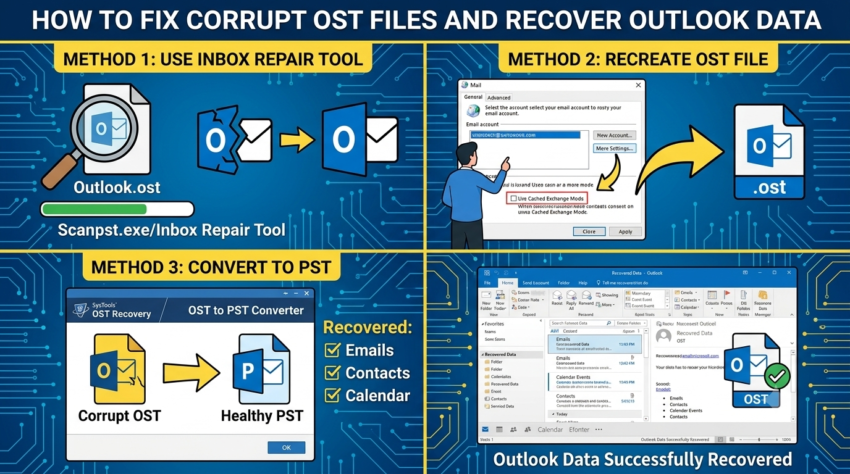
Every Outlook user connected to Exchange or Microsoft 365 depends on an OST (Offline Storage Table) file behind the scenes. It quietly stores a local copy of your mailbox so you can keep reading, drafting, and organizing emails even without internet access. The problem starts when that file gets corrupted or loses its link to the mailbox it was built from. Suddenly, years of emails, contacts, and calendar entries can seem out of reach. This is exactly the kind of problem OST Recovery Software exists to solve. Below, we’ll break down what this software does, why people end up needing it, and the two realistic ways, manual and automatic, to get a damaged OST file back in working order.
What Exactly Does OST Recovery Software Do?
OST Recovery Software is a class of tools built to open and read OST files even when Outlook itself refuses to. The tricky part about an OST file is that it isn’t standalone; it’s tied directly to a specific Exchange mailbox. The moment that connection breaks, whether due to a server change, a deleted account, or internal file damage, Outlook treats the file as unreadable.
Recovery tools work around this limitation by parsing the file’s raw internal structure instead of relying on Outlook’s normal syncing process. They locate and reconstruct individual mailbox components, emails, contacts, calendar items, tasks, notes, and attachments, then let you save that data in a format you can actually open, such as PST, EML, MSG, or a fresh Outlook profile. This entire process falls under what’s generally called OST File Recovery, and for anything beyond minor corruption, it’s usually the only route that actually works.
Common Reasons Users Need to Recover Corrupt OST Files
There isn’t just one cause behind OST corruption. Here are the situations that most often push users to search for a way to Recover Corrupt OST File data:
- Exchange Server Changes: Migrating to a new server or shutting down an old one frequently leaves behind OST files that no longer have a mailbox to sync with.
- Deleted or Disabled Mailboxes: When an admin removes a user’s mailbox from the server, the local OST file is cut off immediately, though its contents often remain intact.
- Unexpected Shutdowns: Sudden power loss, system crashes, or forced Outlook closures are frequent culprits behind internal file corruption.
- Malware Interference: Certain viruses are known to target Outlook’s data files, damaging headers and internal references in the process.
- Excessive File Size: OST files that grow past Outlook’s recommended limits tend to develop stability issues over time.
- Disk or Storage Failures: Bad sectors, drive errors, or an interrupted file transfer can quietly corrupt an OST file without warning.
None of these situations necessarily mean permanent loss. With the right steps to Repair Corrupt OST File problems, the vast majority of mailbox data can usually be brought back.
Method 1: Manual Recovery with ScanPST.exe
Before reaching for third-party software, most people first try Outlook’s own built-in repair utility, ScanPST.exe, also known as the Inbox Repair Tool. It ships free with every copy of Outlook.
Steps to Use ScanPST.exe:
- Locate the Utility: You’ll typically find it inside the Office installation path, such as
C:Program FilesMicrosoft OfficerootOffice16. - Select Your OST File: Open the tool and browse to the corrupt file, generally stored under
C:Users[Username]AppDataLocalMicrosoftOutlook. - Begin Scanning: Click “Start” to let the tool check the file for structural problems.
- Run the Repair: If issues turn up, click “Repair” to attempt a fix automatically.
- Rebuild via Resync: Often, the cleanest solution is deleting the broken OST entirely and letting Outlook create a new one by re-syncing with the mailbox.
The Limits of Doing It Manually
ScanPST.exe works fine for small, surface-level glitches, but it wasn’t designed to handle serious damage. It frequently can’t fix heavily corrupted files, has no way to pull data from orphaned OST files that lack an active mailbox connection, and doesn’t support exporting to other formats. If you’re dealing with anything more than a minor hiccup, relying on manual OST File Recovery alone is risky.
Method 2: Automatic OST Recovery Software
When the built-in tool isn’t enough, dedicated OST Recovery Software offers a far more capable alternative. These programs are specifically designed to deal with everything from light corruption to fully orphaned files, all without requiring any technical background from the user.
One example worth mentioning is Aryson OST Recovery, a tool built to scan and repair damaged or disconnected OST files while pulling out emails, contacts, calendar entries, and attachments in the process. It supports exporting recovered data into multiple formats, PST, EML, MSG, PDF, or straight into a live Outlook or Office 365 account. Tools of this kind are particularly useful for orphaned OST files, a scenario ScanPST.exe simply can’t address since there’s no mailbox left for it to check against.
Advantages of Going the Automatic Route:
- Stronger Scanning Technology: These tools detect and correct corruption at a depth manual utilities can’t match.
- Works on Orphaned Files: Data extraction is possible even without any active mailbox to connect to.
- Multiple Format Options: Export recovered items to PST, a new Outlook profile, or other portable file types.
- Preview Functionality: You can typically review recoverable folders and messages before finalizing anything.
- Handles Multiple Files at Once: Useful for IT teams managing several corrupt OST files across an organization.
- Preserves Original Data: Reliable tools keep formatting, folder hierarchy, and metadata unchanged during recovery.
A Typical Automatic Recovery Process Looks Like This:
- Install a trusted OST Recovery Software program.
- Add the damaged or orphaned OST file to the tool.
- Choose a scan type, Quick Scan for minor issues, Deep Scan for heavier corruption.
- Review the recoverable mailbox contents.
- Select an export format (PST, PDF, EML, or a live Outlook profile).
- Complete the export and check that everything recovered correctly.
Wrapping Up
A corrupted or orphaned OST file feels alarming at first, but it rarely means your data is gone for good. Manual repair through ScanPST.exe can clear up small errors, but it consistently struggles with orphaned files or anything beyond light damage. That’s where solid OST Recovery Software, such as Aryson OST Recovery, makes the real difference. Whether you’re fixing one file or handling OST File Recovery across dozens of user accounts, choosing a proper automatic tool over manual guesswork will almost always get you a faster, cleaner, and more complete result.